The post 5 macOS Folders You Should Never Touch (And Why) appeared first on BardTech.

macOS has a deep and nested folder structure, and a default macOS installation has many unfamiliar-sounding directories. The majority of users don’t ever need to touch these files.
Apple keeps certain folders hidden for a reason. Messing with these directories could result in an unstable system, loss of data, or worse—prevent your Mac from booting up. We’ll show you the places that most users shouldn’t touch in the macOS file system.
1. Language Files and Folders
Mac apps come with language files for every language they support. When you switch your Mac’s system language, the app will change to that language immediately.
To see the language files of an app, right-click it and choose Show Package Contents from the context menu. The path will look like this:
AppName.app/Contents/Resources/Lang.lproj

Removing the language files for third-party apps is easy through Terminal. But for the default macOS apps, you need to disable System Integrity Protection which we don’t recommend at all. Although there is a lot of advice on the internet recommending that you delete language files to gain disk space, the amount of space you earn is not significant enough for the risks involved.
A quick scan with CleanMyMac shows that my Mac will gain about 520MB of disk space by deleting these files. The result might be different in your case, but it’s highly unlikely that you’ll gain more than a few gigabytes. Also, you must redo these steps after every major macOS upgrade.

When you remove language files, you can’t predict which apps will crash or freeze. In the worst case, you’ll have to reinstall the app. Plus, old versions of programs like Microsoft Office and Adobe apps may not work properly or update. Therefore, it’s best to ignore the language files and folders.
Check out our tips for freeing up space on your Mac for better ways to do this.
2. Hidden /private/var Folder
macOS creates several user and system-related cache files to speed up the system. The cache and temporary data located in /Library/Caches is under your control. You can manually delete this cache without any third-party tools.
But the ones in the system folder are entirely managed by macOS. They’re not even visible to you. Sometimes items in these directories can take up vast amounts of disk space. Thus, you might wonder whether it’s safe to delete the contents of /private/var/folders or not.
Location of /private/var/folders
The simplest way to find the /private/var folder is through the Finder Go to Folder menu. Press Cmd + Shift + G to bring up the Go to Folder box and enter /private/var/folders. A new Finder tab will open immediately.
To open the location of system cached and temporary files, launch a Terminal window and type the following:
open $TMPDIR
You’ll see a two-character folder name with long, seemingly random subfolders. As you navigate the folder tree, explore these three folders. The C folder represents Cache, while T is for Temporary files. User files live in the 0 folder.

Issues With /private/var/folders
A quick scan with OmniDiskSweeper shows that the size of /private/var/folders is 1GB and that of /private/var is about 4GB. The size of these folders can vary between system, but shouldn’t be too large. If these directories take up more than 10GB, then they’re a concern.

You should not attempt to manually delete files from any of the /private/var directories even if they’re large. Doing so might damage core macOS files, corrupt document data, and prevent your Mac from booting or behaving as expected. You’d then be stuck reinstalling macOS from scratch.
To safely remove these files, quit all apps, and choose Apple Menu > Shut Down. When you reboot your Mac, you trigger the built-in cache clearing mechanisms. This deletes the unnecessary contents, caches, and temporary items in /tmp, /private/var, and /private/var/folders.
If for some reasons these files don’t clear, then reboot your Mac in Safe Mode . macOS deploys additional built-in mechanisms to get rid of caches and temporary files in this mode. Then reboot into normal mode as usual and recheck your available disk space .
Other Important Folders in /private/var
Concerning disk space, there are few more folders which you should not touch:
- /private/var/db: Includes a bunch of macOS configuration and data files. They include Spotlight database, network configuration files, and more.
- /private/var/VM: Contains swap and sleep image files. If you hibernate your Mac, this directory will occupy more than 5GB of disk space.
- /private/var/tmp: Another temporary file directory.
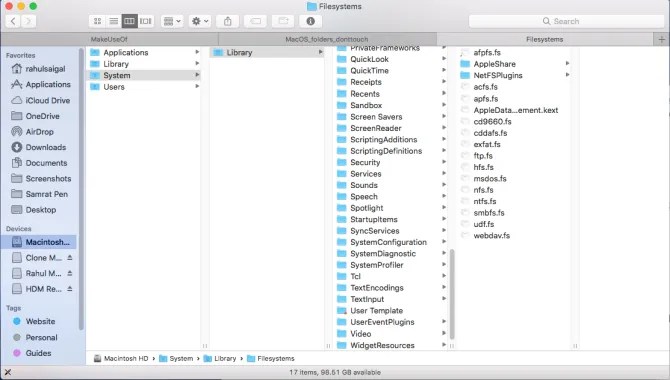
3. System Library Folder
The macOS filesystem contains multiple Library folders . This is by design, and while many similarities exist between the contents of the Library folders, each folder has a different role to play in the macOS filesystem. You’ll find three Library folders:
- /Library
- /System/Library
- ~/Library
The main and System Library folder have a global scope. Their contents support every aspect of the system. The System Library folder contains the files that macOS needs to operate. Only the OS has the right to modify its data, and only system-level events should affect them. There’s no reason for you to touch anything in this folder.
4. User Library Folder
The Library folder inside the home directory is your account’s personal Library. Here, macOS stores system, third-party support files, and preferences. It also includes Mail settings, Safari bookmarks, history, calendar data, and much more. The Library folder also include folders that need occasional cleaning. However, not all folders are safe to touch.
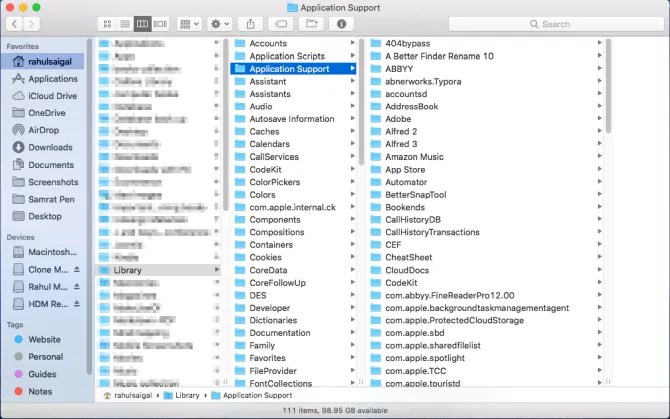
~/Library/Application Support
In this folder, both system and third-party apps store support files, usually in a subfolder named after the application. They contain registration data and even store saved app data used in a particular session. Do not delete contents of the Application Support files directly. Instead, use an app called AppCleaner to delete support files along with the app.
~/Library/Preferences
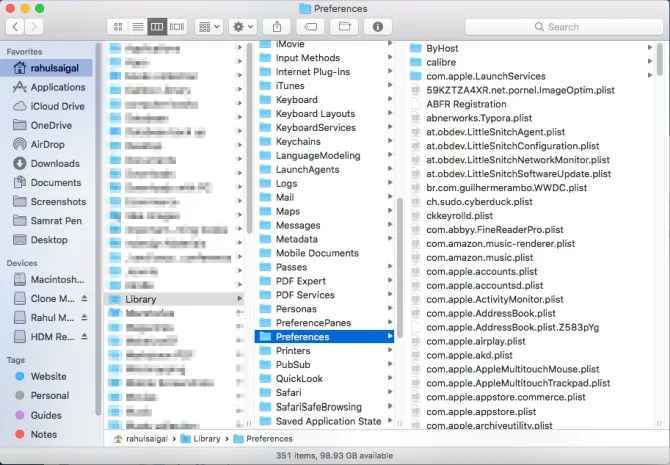
This folder contains all the preference data for default and third-party apps. Again, don’t delete the contents of the Preferences folder; otherwise an app will revert to its default state or might crash. AppCleaner will take care of preferences while uninstalling an app.
~/Library/Mobile Documents
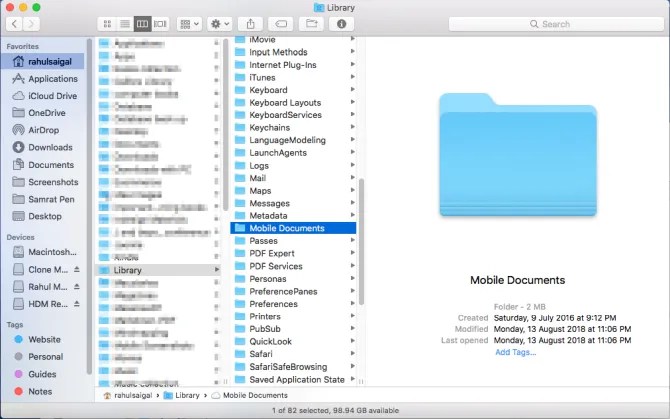
This is the actual location of the iCloud folder. Documents, application preference files, iOS app data, and more lives in this folder. You should not move, rename, or delete it. It’s also a folder that takes up lot of disk space if you use iCloud. Delete the files you don’t need from iCloud Drive to reduce its size.
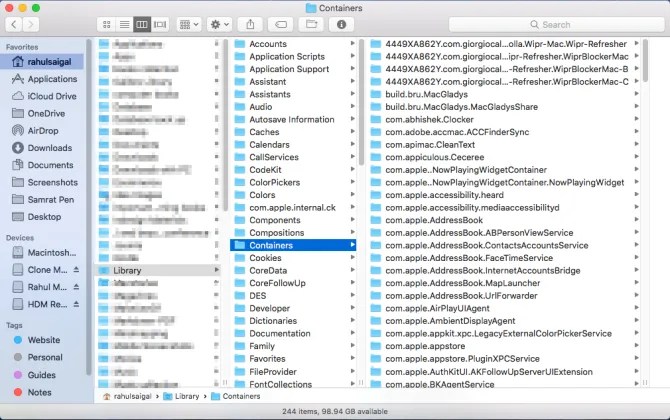
~/Library/Containers
This contains support files, cached data, and temporary files for apps you’ve download from the Mac App Store. Since apps on the App Store are sandboxed, they cannot write data anywhere on the system. Again, don’t delete the contents of this folder. If the Containers folder takes up lot of disk space, reinstall the affected app.
5. Hidden Folders in the Home Folder

When you press the Cmd + Shift + Period keys in the Finder, you’ll see plenty of files and folders in the Home directory which are typically hidden from view. Different macOS technologies and apps store their data in these folders for the smooth working of your Mac. You should not modify or delete any of these folders:
- .Spotlight-V100: Spotlight metadata for each mounted volume. The mdworker processes use this metadata to update Spotlight search.
- .fseventsd: A log file of FSEvents logged by the fseventsd launchdaemon process. It monitors file system events, such as file creation, modification, deletion, and more. Time Machine uses this data to process backup in the background.
- .DocumentRevisions-V100: macOS versioning database used by apps to save and retrieve different versions of a document.
- .PKInstallSandboxManager: Used for software updates and sandboxing.
- .PKInstallSandboxManager-SystemSoftware: Used for system software updates.
- .Trashes: Trash folder in each mounted volume.
You Must Take a Backup
Messing with these folders is risky, as doing so might corrupt your apps, documents, and macOS. While most Mac users don’t have to worry about these folders, you might be tempted to start exploring these folders when disk space becomes an issue.
Having a backup is essential. If you lose any data, you can recover it relatively easily. If you don’t know how to back up, learn how to use Time Machine or check out some great alternatives to Time Machine .
Read the full article: 5 macOS Folders You Should Never Touch (And Why)
The post 5 macOS Folders You Should Never Touch (And Why) appeared first on BardTech.
Tags: Computer Maintenance, Mac, macOS High Sierra, Storage, Temporary Files, folders, macos, never, should, touch
Original link: herevia BardTech
Comments
Post a Comment