The post What Is SIP? macOS System Integrity Protection Explained appeared first on BardTech.

macOS changed significantly with the release of 10.11 El Capitan and the introduction of System Integrity Protection, or SIP for short. It’s a security measure that had some pretty big implications for the operating system back in 2015.
These days, most of us have adapted to a post-SIP macOS. But you might still wonder what it is, what exactly it does, and why you’re best off leaving it alone.
So let’s take a look at SIP, what purpose it serves, and why it came about in the first place.
What Is System Integrity Protection?
Put simply, System Integrity Protection is a security measure Apple introduced to protect certain parts of your macOS installation and core processes, and to vet third-party kernel extensions. It actively protects parts of your system from modification, and blocks installation of insecure extensions.
While you have SIP enabled, certain areas are entirely off-limits in the name of (unsurprisingly) protecting the integrity of your system. You can gain certain privileges via Apple’s developer program, allowing signed software to take actions like installing drivers.
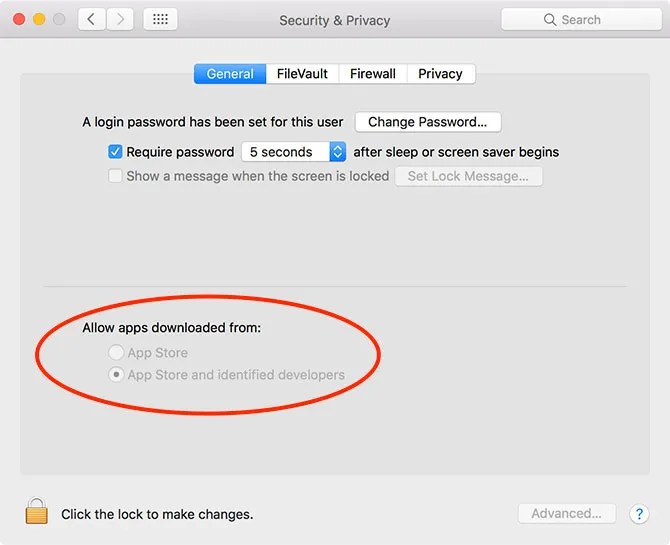
SIP is invisible, and works entirely in the background. It’s not the same as Gatekeeper, Apple’s other security feature that blocks installation of unsigned third-party software. But it’s certainly part of the security-conscious trend that saw Apple introduce the technology, previously known as File Quarantine.
Why Is System Integrity Protection Necessary?
SIP protects your Mac from unwanted meddling. It’s a security feature that appeared in the face of an increasing macOS malware threat. Gone are the days of Apple’s “I’m a PC” marketing slogans that claim the system is virtually bulletproof.
Mac malware exists; there have been many documented cases from simple JavaScript “ransomware” to pervasive malware that attempts to steal your admin password . SIP and Gatekeeper only go so far in protecting against these threats. Mac dangers are a real issue , particularly when it comes to browser technologies like the Java plug-in and Adobe Flash.
Apple noted that much of the threat to macOS (then OS X ) came from the fact that most Apple computers use a single user account with admin privileges. Having admin (root) access to your computer provides autonomy, but prior to SIP, this led to some users unwittingly approving the installation of malware.
In short: your Mac isn’t safe, even from yourself. By limiting what root access can do, Apple effectively builds a barrier between you and the most sensitive parts of your system. The side effect of this approach is that you no longer have complete control, particularly with tweaking appearance and application behavior.
This tightening of Apple’s grip over macOS has led some users to complain that the platform is following too closely in the footsteps of Apple’s mobile platform, iOS. On the upside, iOS is the most secure mobile platform on the market, so the approach has some merit.
Which Parts of macOS Does SIP Protect?
SIP affects directories, processes, and kernel extensions. That means you cannot make changes to the following directories:
- /System
- /usr
- /bin
- /sbin
Most of these directories aren’t even visible, so the protection is mainly aimed at preventing third-party programs from writing to these areas. This also includes the ability to make changes to core system files, which means less customization than pre-SIP macOS.
Users and third-party apps can still make changes to the following directories:
- /Applications
- /Library
- /usr/local

SIP also protects most applications that come installed with macOS from interference too.
Finally, third-party kernel extensions (including drivers) must now be signed with an Apple Developer ID. Your Mac won’t boot if unsigned kernel extensions are present.
How Does SIP Affect Mac Software?
In the few years since SIP was introduced, developers and users alike have adjusted to the lockdown of certain system components. Many developers rewrote apps from the ground up to work alongside SIP. Lots more have since launched that already accommodate Apple’s restrictions.
All apps in the Mac App Store must work with SIP in order to gain Apple’s approval. The vast majority of third-party apps work just fine too. There are a few exceptions like Winclone , which still requires the disabling (and then re-enabling) of SIP in order to perform its function as a Boot Camp cloning tool.

While there are plenty of small handy Mac tweaks for fixing just about everything still available, deep system tweaks are mostly no longer viable. For example, theming apps designed to change the colors, look, and feel of Finder relied on code injection, which you can’t do anymore. These apps are no longer viable without building something new from scratch.
Ultimately, though, software is not affected unless the developer specifically points it out. If that’s the case, it might be worth looking for a different app to perform the same task. SIP exists to protect you. For the vast majority of users who see macOS as a functional base with which to get work done, it’s well worth living within these constraints.
How Do You Disable SIP on macOS?
If you really want to disable SIP, you can do so by rebooting into your Mac’s recovery partition (hold Cmd + R at startup), then using the csrutil command line utility. Check out our full guide to disabling SIP , but we’d recommend you re-enable it when you’re done tinkering.
It’s also worth pointing out that your computer will re-enable SIP every time you update your OS, or upgrade to a new version of macOS. You might as well leave it on and work around it, since it’s here to stay.
System Integrity, Protected
Apple’s efforts to secure macOS have led to it enjoying an excellent security record. Built on a Unix base, macOS provides signature Apple user-friendliness and approach to user privacy. It’s completed with a rock-solid foundation and a focus on security.
Since new software is built with SIP in mind, only old software, deep system-level tweaks, and the odd niche third-party app will ever require you disable it.
In the end, it’s a security feature, and one that follows Apple’s design sensibilities for the macOS platform. Since the use of Apple’s OS is one of the primary motivators for buying a Mac , it doesn’t make much sense to disable a feature like this.
Read the full article: What Is SIP? macOS System Integrity Protection Explained
The post What Is SIP? macOS System Integrity Protection Explained appeared first on BardTech.
Tags: Anti-Malware, Computer Security, Mac, macOS High Sierra, Security, explained, integrity, macos, protection, system
Original link: herevia BardTech
Comments
Post a Comment