
How to Install Brushes in Procreate

The post How to Install Brushes in Procreate appeared first on BardTech.

Hand-lettering is all the rage now, and if you’re interested in giving it a go, one of the most popular apps you’ll want to add to your arsenal is Procreate. And to get the most out of the app, you’ll probably want to install a few free or paid hand lettering brushes.

Installing brushes you’ve downloaded couldn’t be easier.

How to Install Brushes in Procreate

You can download the brushes on your computer and save them to the cloud (iCloud or Dropbox) or you can download them directly on your iPad.

If you download the files to your iPad as a ZIP file, you can unzip the files with a free app like FileExplorer: File Manager  or iZip . No matter how you choose to download the brush, the installation process is the same:

  1. Open a new canvas and tap the paintbrush icon to open the Brushes panel.
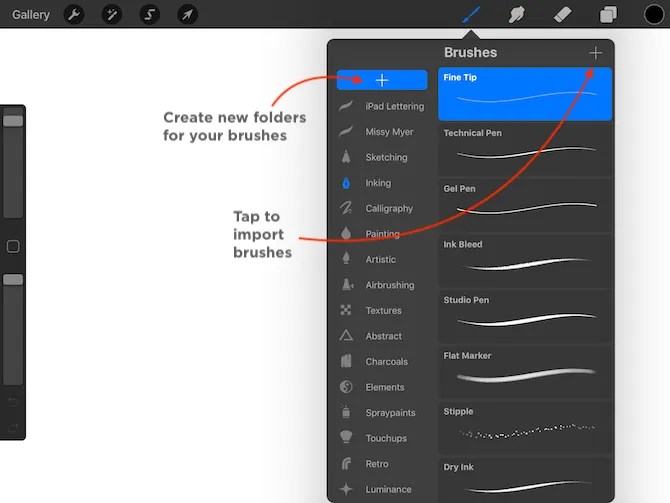
  2. Select the folder where you want to install the brush. (You can create a new folder by tapping the + button at the top of the list of brush sets.)
  3. Tap the + button above the list of brushes to import a new brush.
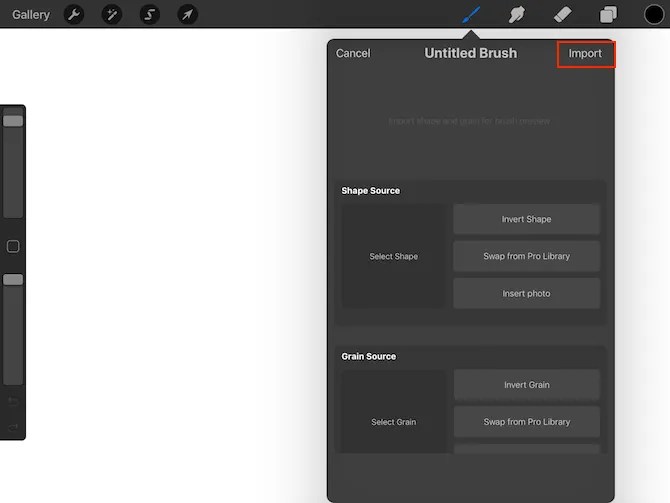
  4. Tap Import in the dialog box that opens. 
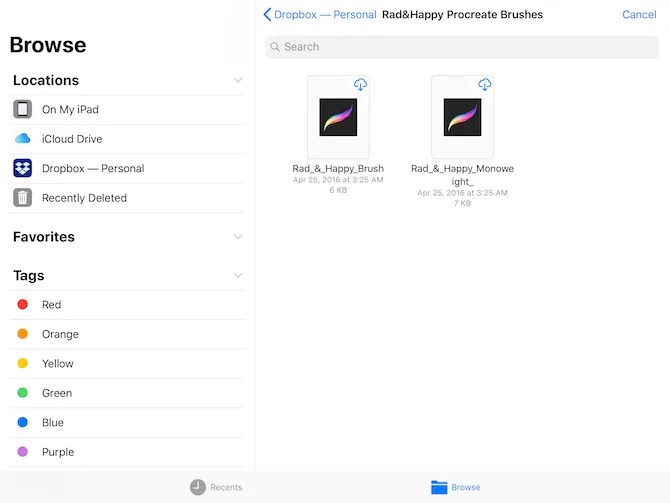
  5. You’ll see the iPad’s File interface. Navigate to the folder containing your downloaded Procreate brushes.
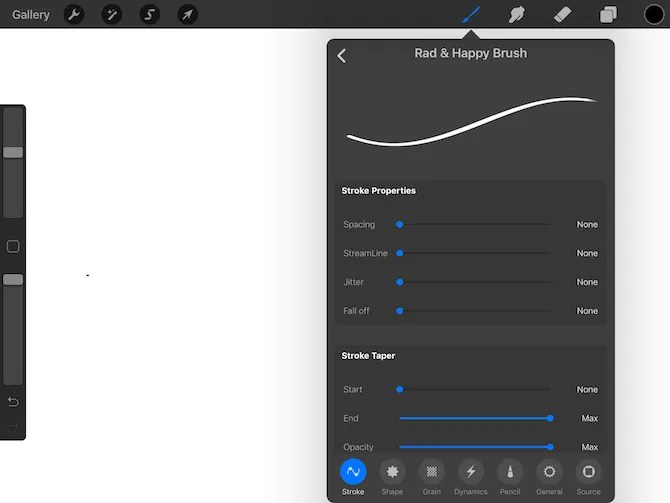
  6. Tap the brush you want to install. The screen will go back to the Procreate canvas with the brush panel open. (At first the brush will be labeled as an untitled brush, but once you hit the back button to go back to the list of brushes, the name will appear.) 
To get you started, you can find some great free Procreate brushes courtesy of Missy Myer.

While Procreate is great for hand-lettering, it’s not the only way the popular iPad app can be used. It is one of the most powerful iPad art apps out there.

Image Credit: tomeversley/Depositphotos

Read the full article: How to Install Brushes in Procreate

Original Content By MakeUseOf

The post How to Install Brushes in Procreate appeared first on BardTech.


Tags: Creative, Graphic Design, iPhone and iPad, Procreate, Short, brushes, install, procreate

Original link: here
via BardTech

Comments

Popular posts from this blog

How to change the PIM of a VeraCrypt volume

The developers of VeraCrypt introduced Personal Iterations Multiplier (PIM) functionality in the encryption program in version 1.12 . PIM stands for "Personal Iterations Multiplier". It is a parameter that was introduced in VeraCrypt 1.12 and whose value controls the number of iterations used by the header key derivation function. PIM is used by volumes even if the creator of the volume did not specify a value. It is an optional component that improves security: it adds another step to the authentication process similarly to two-factor authentication. The main difference is that the PIM value is fixed and not generated on the fly when requested. An attacker needs to know the master password and the PIM, if not set to default, to breach the encryption successfully and access the content of the drive or partition. A couple of good reasons exist to change the PIM value: It was leaked or stolen. The default value is used and that is not as secure as using a custom PIM. Yo...

Realme U1 with MediaTek Helio P70 launched in India for ₹11,999

Realme is an emerging smartphone brand in India, with a focus on budget and early mid-range segments. Realme started off as an online-only sub-brand of OPPO, but then later on, became its own separate brand . Realme devices ar seen to undercut the competition on their price value, and hence, coming up as viable alternatives despite the infancy of the brand. To keep up the pressure, Realme has now launched the Realme U1, the first smartphone with MediaTek’s Helio P70 SoC , in India. Realme U1 is the first smartphone in the company’s U series, which in-turn is the lineup that will be focused on photography. The rest of the company’s lineup includes the C series, the numbered series and the Pro series. The Realme U1 is being touted as “India’s Selfie Pro”, mainly because of its front camera — a single 25MP Sony IMX576 sensor with an f/2.0 aperture and 1.8-micron pixels. There’s software features like an AI Beauty+ mode that is optimized for Indian complexions, a Smarter Groupie featur...

The 5 Best Free IPTV Apps to Watch Live TV on Android

It’s easier than ever to watch on-demand TV shows and movies on your Android device. But what about live TV? Yes, there are services like Sling and PlayStation Vue. However, if you know where to look, you don’t need to subscribe to their expensive plans. You can use free IPTV instead; you just need an IPTV app and an IPTV source. What Is an IPTV App? IPTV apps are a bit like Kodi; they are empty shells that can’t stream any content without some user input. You have the responsibility for adding channels, playlists, and other sources. Typically, you cannot use the apps to watch Netflix, Hulu, or direct content from other third-party providers. Here, we’re not interested in the best on-demand streaming apps or places to watch TV online. We are only looking at the IPTV apps themselves. Specifically, we want to know what the best IPTV apps on Android are. 1. Lazy IPTV Our first pick is Lazy IPTV. It supports M3U playlists in open-view, ZIP, and GZ formats. The app can also read pl...