
How to Back Up Any Folder With OneDrive (No Matter Where It Is)

The post How to Back Up Any Folder With OneDrive (No Matter Where It Is) appeared first on BardTech.

windows10-onedrive

Microsoft OneDrive, the cloud storage and sharing solution built into Windows 10 , has continued to grow. Now it’s better integrated into the OS and gains features somewhat regularly.

One of the newest is its ability to back up folders outside of OneDrive. This helps solve one of the biggest pain points with cloud storage—that it only syncs data you place inside its specific folder.

Here’s how to back up your most important outside folders with OneDrive.

How to Back Up Any Folder Using OneDrive
OneDrive-Folder-Protection

  1. Click the OneDrive icon in the System Tray at the bottom-right corner of your screen (you may need to expand this area using the arrow icon). Select More > Settings.
  2. Jump to the Auto Save tab and click the Update folders button to access the new feature. If you don’t see this, check back a bit later to see if Microsoft rolled it out to you yet.
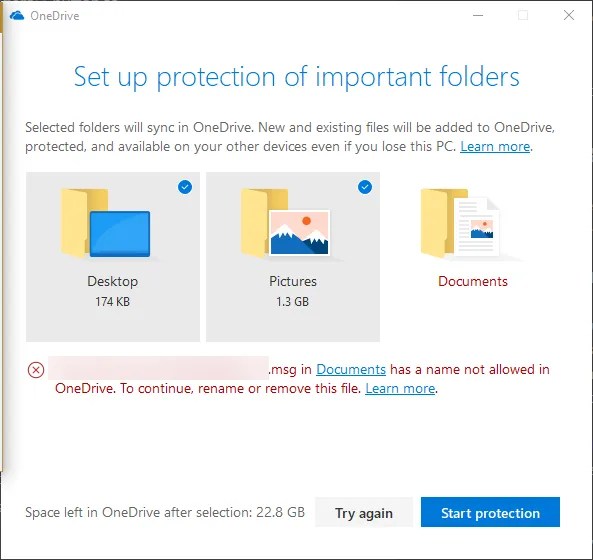
  3. Next, you’ll see the Protection screen. Here, you can choose to back up your Desktop, Pictures, and Documents folders. If you have any items in these folders that cause an issue, you’ll see an alert and won’t be able to proceed until you take care of them. See Microsoft’s help page on this to review types of invalid files. One of the most common is that OneDrive can’t back up PST files.
  4. Review the Space left in OneDrive after selection and make sure you’re happy with how you’re using your space . Click Start protection and OneDrive will begin syncing those folders.

Once OneDrive uploads the contents of these folders, you can access them from anywhere you sign into OneDrive. This includes the apps on your phone, the web portal, and other PCs. In fact, enabling this one two computers will sync the contents of each folder.

Essentially, this lets you sync files to OneDrive even if they’re not in the right folder. It’s convenient, but we still recommend a proper backup solution to really protect your files. Cloud storage sync like this isn’t a perfect backup solution because it will sync mistakes too.

Read the full article: How to Back Up Any Folder With OneDrive (No Matter Where It Is)

Original Content By MakeUseOf

The post How to Back Up Any Folder With OneDrive (No Matter Where It Is) appeared first on BardTech.


Tags: Cloud Storage, Data Backup, Microsoft OneDrive, Productivity, Short, Windows, folder, matter, onedrive, where

Original link: here
via BardTech

Comments

Popular posts from this blog

How to change the PIM of a VeraCrypt volume

The developers of VeraCrypt introduced Personal Iterations Multiplier (PIM) functionality in the encryption program in version 1.12 . PIM stands for "Personal Iterations Multiplier". It is a parameter that was introduced in VeraCrypt 1.12 and whose value controls the number of iterations used by the header key derivation function. PIM is used by volumes even if the creator of the volume did not specify a value. It is an optional component that improves security: it adds another step to the authentication process similarly to two-factor authentication. The main difference is that the PIM value is fixed and not generated on the fly when requested. An attacker needs to know the master password and the PIM, if not set to default, to breach the encryption successfully and access the content of the drive or partition. A couple of good reasons exist to change the PIM value: It was leaked or stolen. The default value is used and that is not as secure as using a custom PIM. Yo...

Huawei Mate 20 Pro launched in India with Kirin 980 for ₹69,990 ($988)

For years, the highest-end Android flagship used to be defined by Samsung’s Galaxy Note series as the “best-of-the-best” Android phones. Google entered the premium smartphone segment in 2016 with the Google Pixel . In addition, one company that has been steadily improving its flagship phones is Huawei. Huawei has also been steadily increasing the prices of its flagship phones at the same rate. Indian consumers, however, were left out as Huawei had not opted to launch any Mate series phone in India before. This year, as the company’s strategy has changed, high-end flagship smartphone buyers now have another option to choose from. The Huawei P20 Pro was launched in India in April . Now, Huawei has launched the Huawei Mate 20 Pro in India—the first ever launch of a Mate series phone in the country. The Huawei Mate 20 Pro is the successor of the Huawei Mate 10 Pro . It’s positioned as a higher-end variant of the standard Huawei Mate 20. It should be noted that Huawei didn’t launch the s...

The 5 Best Free IPTV Apps to Watch Live TV on Android

It’s easier than ever to watch on-demand TV shows and movies on your Android device. But what about live TV? Yes, there are services like Sling and PlayStation Vue. However, if you know where to look, you don’t need to subscribe to their expensive plans. You can use free IPTV instead; you just need an IPTV app and an IPTV source. What Is an IPTV App? IPTV apps are a bit like Kodi; they are empty shells that can’t stream any content without some user input. You have the responsibility for adding channels, playlists, and other sources. Typically, you cannot use the apps to watch Netflix, Hulu, or direct content from other third-party providers. Here, we’re not interested in the best on-demand streaming apps or places to watch TV online. We are only looking at the IPTV apps themselves. Specifically, we want to know what the best IPTV apps on Android are. 1. Lazy IPTV Our first pick is Lazy IPTV. It supports M3U playlists in open-view, ZIP, and GZ formats. The app can also read pl...