The post 9 Simple Tweaks to Speed Up Firefox Immediately appeared first on BardTech.

Nearly all web browsers have similar speeds when actually browsing the web, so “speed” actually comes down to the performance and how you use the program. Whether you’re already a Firefox user or switching from Chrome to Firefox , this guide will tell you how to speed it up.
We’ll be sticking to the latest stable version of Firefox for this one. While Firefox on Android has some cool features too, this article focuses on the desktop browser.
You should obviously use the latest and greatest version of Firefox. We believe it’s the best browser for Linux and has enough in it to be your favorite on Windows or macOS.
Download: Mozilla Firefox for Windows | macOS | Linux (Free)
1. Enable Hardware Acceleration
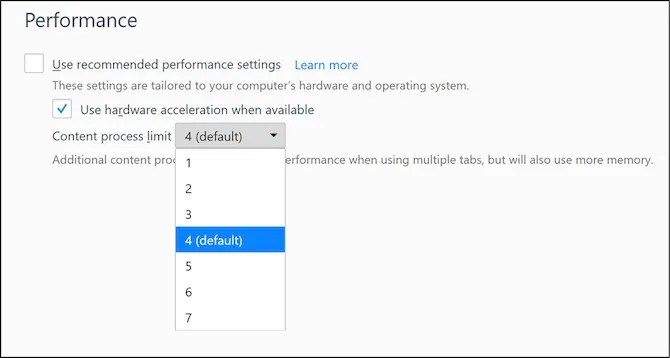
The new Firefox Quantum can take advantage of your computer’s GPU to load pages faster and play online videos more smoothly. But for quite a few computers, this isn’t enabled by default. So check that first.
- Go to about:preferences
- In General, scroll down to Performance
- Uncheck the box for Use recommended performance settings
- Check the box for Use hardware acceleration when available
You’ll also see another option under it called Content process limit. If your computer has a dedicated GPU and more than 8GB of RAM, raise this beyond 4. Otherwise, leave it to the default 4 value. Generally speaking, raise it to 5 for 16GB RAM, 6 for 32GB RAM, and 7 for 64GB RAM.
Hardware acceleration and content process are the first things you should check if Firefox runs slow while other browsers run fast .
2. Disable Data Collection and Telemetry
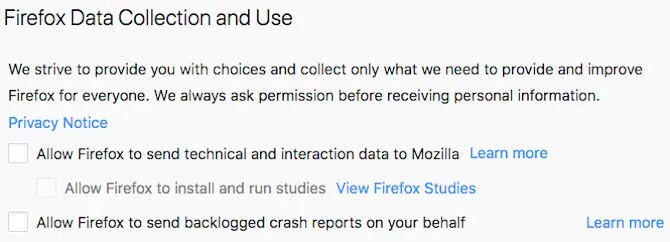
Firefox continually collects anonymous data about how you use the browser. It then sends that data to its servers, to improve features in the browser. Don’t worry, this isn’t compromising your privacy, but it does make Firefox slower.
You can stop Firefox from doing this with a couple of simple tweaks.
First, you need to disable Data Collection in Firefox:
- Go to about:preferences
- Go to Privacy & Security, and scroll down to Firefox Data Collection and Use
- Uncheck all boxes in this section
- Restart Firefox
Behind the scenes, Firefox uses something called Telemetry to send that data across. To disable Telemetry, you will need to dive into about:config settings.
3. Essential About:Config Tweaks
You can change intricate settings in Firefox through its accessible Configs menu. We’ve featured a few essential Firefox tweaks already, but this time, we’re going to concentrate only on those that make the browser work faster.
How to Access and Use About:Config
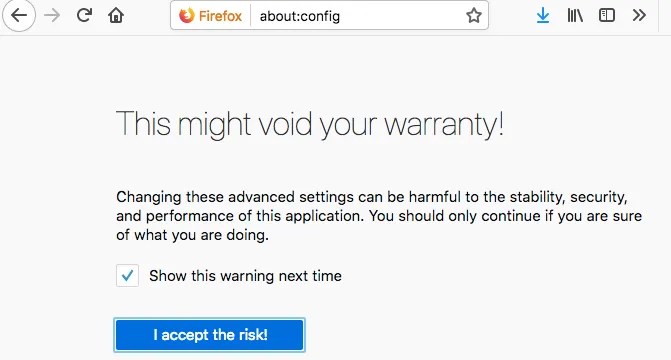
- Open a New Tab
- Type about:config in the URL bar
- Click I’ll be careful, I promise
- Search for any string mentioned below
- Double-click value to change the value of any field
- Click anywhere else to save the changes
Once you’re in about:config, change the following preferences to the denoted value so that your Firefox runs faster.

- Set browser.download.animateNotifications to False
- Set security.dialog_enable_delay to 0
- Set network.prefetch-next to False (Only on slow internet connections)
- Set browser.newtabpage.activity-stream.feeds.telemetry to false
- Set browser.newtabpage.activity-stream.telemetry to false
- Set browser.ping-centre.telemetry to false
- Set toolkit.telemetry.archive.enabled to false
- Set toolkit.telemetry.bhrPing.enabled to false
- Set toolkit.telemetry.enabled to false
- Set toolkit.telemetry.firstShutdownPing.enabled to false
- Set toolkit.telemetry.hybridContent.enabled to false
- Set toolkit.telemetry.newProfilePing.enabled to false
- Set toolkit.telemetry.reportingpolicy.firstRun to false
- Set toolkit.telemetry.shutdownPingSender.enabled to false
- Set toolkit.telemetry.unified to false
- Set toolkit.telemetry.updatePing.enabled to false
Your Firefox should now be visibly faster, as you have just disabled unnecessary animations, stopped the countdown timer when you’re installing extensions, and told it to stop preloading web pages when you’re on a slow connection.
4. Disable Accessibility Services
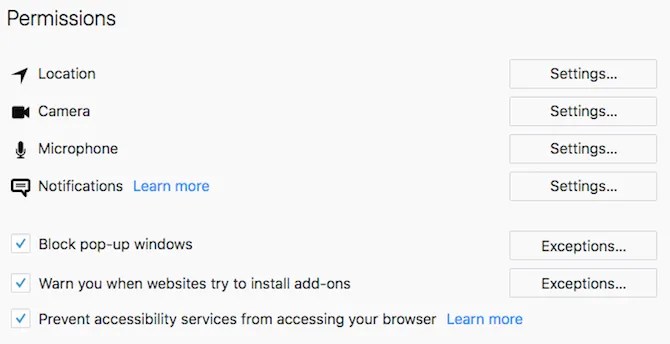
Firefox Quantum is always monitoring your browser through something called Accessibility Services. It’s useless for anyone who doesn’t need assistive technologies for physical impairments.
Here’s how to safely disable Accessibility Services in the new Firefox:
- Go to about:preferences
- Go to Privacy & Security, and scroll down to Permissions
- Check the box for Prevent accessibility services from accessing your browser
- Restart Firefox when prompted
5. Download Speed Tweaks for Firefox Quantum

With almost every browser, there are a few common tricks to speed up performance . You could manually do all of that or let a handy extension called Speed Tweaks take care of it.
None of the seven tweaks are selected by default, so you will have to check what you want to use. The tricks include:
- Block common ads by default
- Pre-solve DNS entries
- Block all images from loading by default
- Speed up page rendering while scrolling
- Load the mobile version of websites
- Discard inactive tabs to save memory
- Clear the browser cache
It’s a quick and simple fix for a faster browser, and you can toggle any setting on and off when you want.
Download: Speed Tweaks for Firefox (Free)
6. Remove Built-in Firefox Add-ons

The new version of Firefox integrates add-ons like Pocket out of the box, whether you want them or not. Removing them can speed up the browser’s startup time and memory usage.
We’ve shown you how to remove these Firefox integrations , but here are the quick shortcuts if you don’t need step-by-step instructions from the article:
- In about:config, set reader.parse-on-load.enabled to False
- In about:config, set reader.parse-on-load.force-enabled to False
- In about:config, set browser.pocket.enabled to False
- In about:config, set loop.enabled to False
7. Switch to Bookmarklets

We’ve been saying this for quite some time now, but you should seriously consider the benefits of using bookmarklets instead of extensions or add-ons. Bookmarklets are lighter, safer, and work just as well as several popular add-ons.
For instance, you can ditch the Pocket add-on and install the Pocket bookmarklet to stop Firefox wasting RAM on Pocket till the moment you actually need to add a new page. Yup, otherwise, that extension is taking up RAM even if you don’t use it.
We have a large list of bookmarklet alternatives to add-ons , so start replacing those extensions!
8. Manage Your Tabs
Apart from extensions, the other thing that really slows down the browser is the number of tabs you have open. It’s all right to have several tabs open, but you need to manage them correctly to ensure Firefox doesn’t start crawling. Funnily, you’ll need to accomplish this is with two add-ons.
Auto Tab Discard

You keep a lot of tabs open, but you don’t always need them all the time. Auto Unload Tab will automatically stop that tab from taking up CPU cycles, RAM, or from reloading. Right-click in the tab or the extension icon to see a context menu with all the options you need. You can add individual tabs or certain sites to the blacklist so that they are ignored by Auto Unload Tab.
It’s one of the must-have add-ons for faster web browsing .
Download: Auto Tab Discard for Firefox (Free)
OneTab

Available on all major browsers, OneTab is one of the brilliant ways to manage tabs without losing them . One click of the OneTab icon and it will close all open tabs and and generate them as a list. You can reopen all tabs in another click, or just save the list so that it can be opened later.
It’s a simple way to keep your browser light without dumping any open tab and desperately searching for it later.
Download: OneTab for Firefox (Free)
9. Refresh Firefox to Start From Scratch

The first time you installed Firefox, it was much faster, right? Browsers get slower with age. If you want to go back to the feel of that fresh installation, Firefox Quantum has an easy way to do that.
You can Refresh Firefox to remove all add-ons you downloaded and customizations you’ve made. It will also restore your browser settings to default.
Here’s how to Refresh Firefox:
- Open a new tab and go to about:support
- Click Refresh Firefox in the Give Firefox a tune up box
- Click Refresh Firefox again in the dialog prompt that pops up to confirm your decision
More Firefox Productivity With Tab Management
These tips and tricks are excellent ways to speed up your slow Firefox browser. But the most common reason your browser runs slow is the tabs. Unless you make an effort to handle your tabs well, none of these tweaks will have a long-lasting effect. So whatever you do, make sure you learn tab management in Firefox Quantum .
Read the full article: 9 Simple Tweaks to Speed Up Firefox Immediately
The post 9 Simple Tweaks to Speed Up Firefox Immediately appeared first on BardTech.
Tags: Browser Extensions, Browsers, Internet, Mozilla Firefox, firefox, immediately, simple, speed, tweaks
Original link: herevia BardTech
Comments
Post a Comment