
3 Ways to Reduce the Size of a Microsoft Word Document

The post 3 Ways to Reduce the Size of a Microsoft Word Document appeared first on BardTech.

microsoft-word-auto-update

You probably don’t worry much about the size of Microsoft Word documents in most cases. Compared to games, videos, and other large files, they don’t take up much space at all.

But if you’re posting a Word document online, sharing it via email, or need to shave off every byte possible for some other reason, here are three quick ways to cut down how big your Word document is.

1. Save in DOCX Format
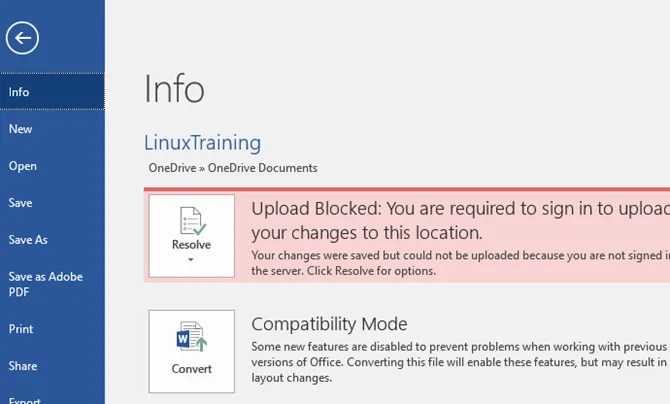
Word-Convert-to-DOCX

Starting with Word 2007, documents now save in DOCX format instead of DOC. The only reason to use DOC is if you need backwards compatibility with ancient word processing apps.

One of DOCX’s benefits is far smaller file sizes. A document that’s a few megabytes in DOC form would take up just a few hundred kilobytes as a DOCX.

When you save your Word documents, make sure to choose the DOCX format. If you’re already working with a DOC file, open the File tab in Word and select Convert on the Info tab. You’ll need to accept a prompt and provide a new file name.

2. Compress Images

Word-Compress-Images

Before you insert an image into a Word document, perform any edits in a separate image editor . If you edit inside Word, it will retain the original version and waste space.

You should also use the Insert > Picture menu to add an image from your computer in a space-friendly format, like JPG, instead of pasting it in. When you paste, Word adds the image as a PNG or BMP, which both take up a lot of space.

Finally, on the Save As menu, you can select Tools > Compress Pictures and select a Resolution for all of them. Depending on the document, you may be able to get away with lower-quality images to save more space.

3. Remove Font Embeds
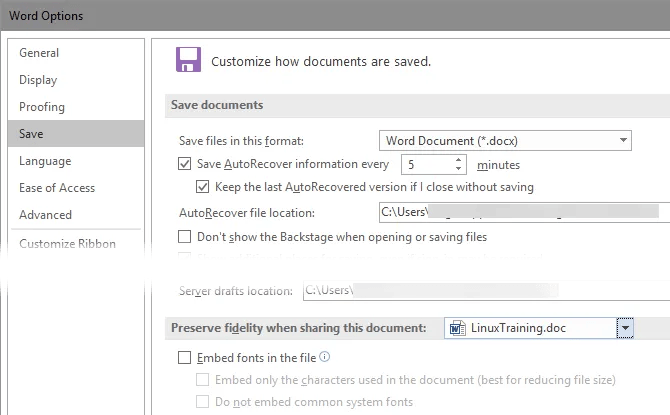
Word-Embed-Fonts-Option

If you use a custom font in a document and someone who doesn’t have that font installed opens it, it won’t look right. To combat this, Word lets you embed fonts in your document so they work everywhere.

As you can imagine, this takes up more space. Head to File > Options and on the Save tab, make sure to uncheck Embed fonts in the file. If you must have fonts embedded for a particular file, you can check Do not embed common system fonts to leave out universal fonts like Arial.

For more tips, check out hidden features of Microsoft Word you must know .

Read the full article: 3 Ways to Reduce the Size of a Microsoft Word Document

Original Content By MakeUseOf

The post 3 Ways to Reduce the Size of a Microsoft Word Document appeared first on BardTech.


Tags: Microsoft Word, Productivity, Short, document, microsoft, reduce

Original link: here
via BardTech

Comments

Popular posts from this blog

How to change the PIM of a VeraCrypt volume

The developers of VeraCrypt introduced Personal Iterations Multiplier (PIM) functionality in the encryption program in version 1.12 . PIM stands for "Personal Iterations Multiplier". It is a parameter that was introduced in VeraCrypt 1.12 and whose value controls the number of iterations used by the header key derivation function. PIM is used by volumes even if the creator of the volume did not specify a value. It is an optional component that improves security: it adds another step to the authentication process similarly to two-factor authentication. The main difference is that the PIM value is fixed and not generated on the fly when requested. An attacker needs to know the master password and the PIM, if not set to default, to breach the encryption successfully and access the content of the drive or partition. A couple of good reasons exist to change the PIM value: It was leaked or stolen. The default value is used and that is not as secure as using a custom PIM. Yo...

Realme U1 with MediaTek Helio P70 launched in India for ₹11,999

Realme is an emerging smartphone brand in India, with a focus on budget and early mid-range segments. Realme started off as an online-only sub-brand of OPPO, but then later on, became its own separate brand . Realme devices ar seen to undercut the competition on their price value, and hence, coming up as viable alternatives despite the infancy of the brand. To keep up the pressure, Realme has now launched the Realme U1, the first smartphone with MediaTek’s Helio P70 SoC , in India. Realme U1 is the first smartphone in the company’s U series, which in-turn is the lineup that will be focused on photography. The rest of the company’s lineup includes the C series, the numbered series and the Pro series. The Realme U1 is being touted as “India’s Selfie Pro”, mainly because of its front camera — a single 25MP Sony IMX576 sensor with an f/2.0 aperture and 1.8-micron pixels. There’s software features like an AI Beauty+ mode that is optimized for Indian complexions, a Smarter Groupie featur...

The 5 Best Free IPTV Apps to Watch Live TV on Android

It’s easier than ever to watch on-demand TV shows and movies on your Android device. But what about live TV? Yes, there are services like Sling and PlayStation Vue. However, if you know where to look, you don’t need to subscribe to their expensive plans. You can use free IPTV instead; you just need an IPTV app and an IPTV source. What Is an IPTV App? IPTV apps are a bit like Kodi; they are empty shells that can’t stream any content without some user input. You have the responsibility for adding channels, playlists, and other sources. Typically, you cannot use the apps to watch Netflix, Hulu, or direct content from other third-party providers. Here, we’re not interested in the best on-demand streaming apps or places to watch TV online. We are only looking at the IPTV apps themselves. Specifically, we want to know what the best IPTV apps on Android are. 1. Lazy IPTV Our first pick is Lazy IPTV. It supports M3U playlists in open-view, ZIP, and GZ formats. The app can also read pl...